This chapter describes how simulation runs for modeling and alternatives can be started and their status checked.
Contents
In order to start a simulation run, the alternative side menu must be opened via the |
|
button |

There the button |
|
can be used to call up an information dialog that offers information and actions depending on the status of the current simulation runs. |

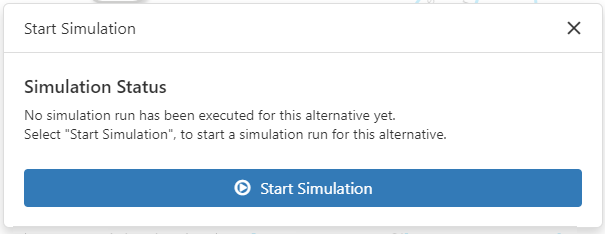
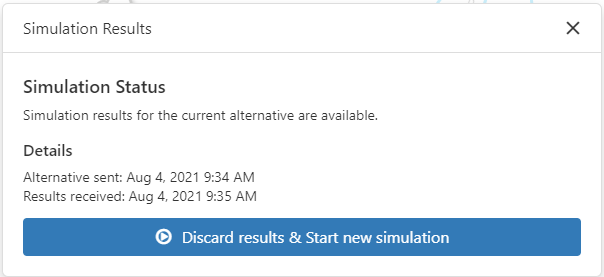
If no simulation run has yet been executed, the note from Figure 1 appears; if results of a simulation run already exist, the note from Figure 2 appears.
The simulation can be started using any of the buttons in the Figures below.
Figure 1 - Note simulation run |
Figure 2 - Note 2 simulation run |
After the simulation has been started, a progress indicator appears in the respective line, which gives the user feedback as to how far the simulation has progressed (see Figure 3).
Further simulations can be started at any time, but only one simulation run at a time is permitted as an alternative.
Parallel simulation jobs from different alternatives are transferred to the server independently of each other, classified accordingly and processed according to the waiting queue principle (see Figure 4).
To cancel a simulation, click on the |
|
button to call up information on the currently executed simulation run (see Figure 3) |

In this window the currently running simulation can be aborted by clicking the Cancel Simulation button.
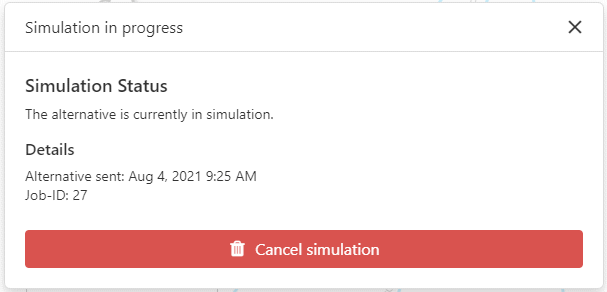
Figure 3 - Cancel simulation run
After the simulation has been successfully completed, the status display changes to |
|

A click on this button displays information about the simulation run performed and also offers the possibility to start a new simulation run (see Figure 2).
|
Note: With a trigger of a simulation run, the respective alternative is coded into a model and transferred to a server. The server then starts a Plant Simulation instance with an associated template model in which the model is automatically built and simulated. The simulation models run through are stored on the server (including the corresponding input and output data) in a unique simulation job folder for later viewing. For this simulation job folder an Explorer link is displayed in the information dialog, which leads to a network drive of the server. For this the (Windows) user must hold a corresponding access authorization |

If the simulation fails, this is indicated over the |
|
or |
|
button. A click on this button displays information about the failed simulation run. |


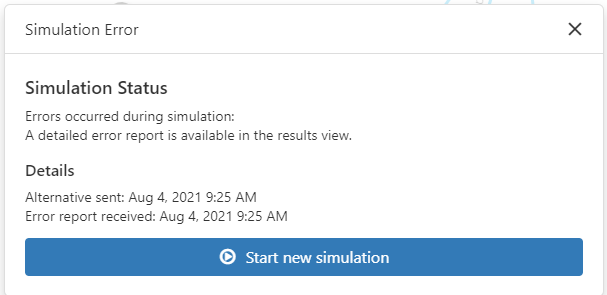
Figure 4 - Failed simulation run
The button |
|
can be used to view the results of the simulation run(s) |

If the simulation fails, further information can be displayed here (see Figure 5). Detailed explanations of the simulation results can be found in the chapter Results.
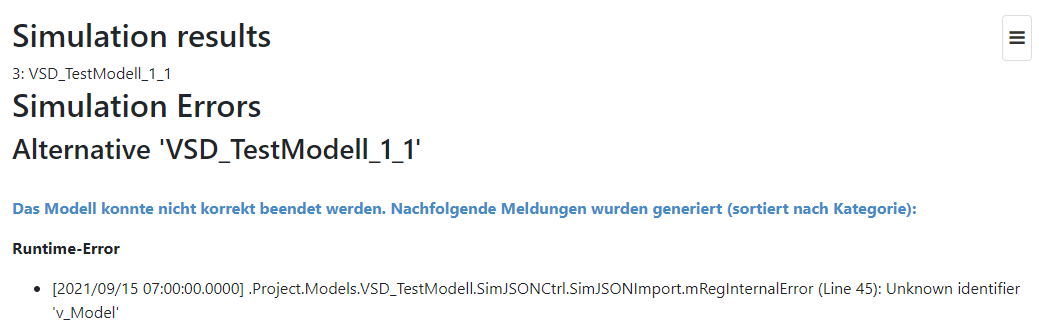
Figure 5 - Result view with error
© SimPlan AG - Hanau District Court, Commercial Register (Part B) 6845 - info@simplan.de - www.simplan.de