Contents
5. Export a local project as a file
7. Upload a local project to the server
As soon as a user has logged in to the application, the Open Project page appears. Here the user can first differentiate between the tabs Local projects and Server projects.
The overview of local projects includes columns for Project Names, last Modification Date and a further Description.
It also lists the number of alternatives in a project. The buttons on the right edge of an entry lead to a project upload as well as further editing and administration steps.
Figure 1 shows the overview of locally created projects. If the user has not yet created a project, the list is empty.

Figure 1 - Overview local projects
If the list of local projects becomes more extensive, the displayed entries can also be restricted by means of selectable filters (for each individual column) (see Figure 2).
In addition, the local overview is restricted to projects of the logged-in user, i.e. if several users work on one computer, a personalized view is guaranteed.
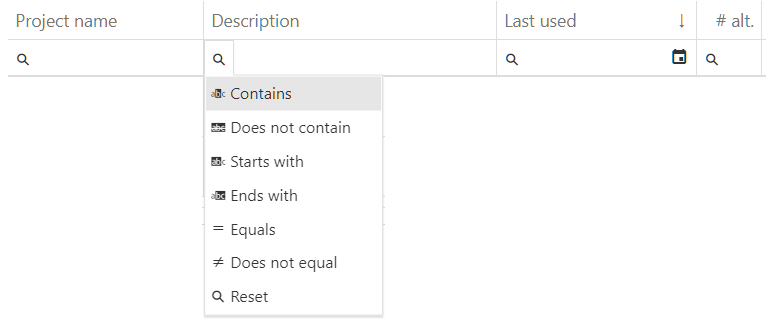
Figure 2 - Project overview filter date
By clicking on the button New project a new local project can be created.
This opens a new window in which either a new project can be created (see Figure 3), or an existing one can be imported. To create a new project, a project name must be assigned first.
This field must be filled out. The remaining field Description is to be filled optionally. By clicking on the button Create project the creation of the project is completed.
As a result, the view with the current logic automatically switches to the modeling interface and not to the local project overview. Also when importing, the view automatically changes to the first alternative of a project.

Figure 3 - Create a new project
In order to import an existing project, it must first be selected via the Select file button.
|
Note: Only files with the extension *.simui can be imported. |

Then, just as when creating a new project, a project name must be assigned. If a local project with the same name already exists, the name must be changed in the Project Name field (see Figure 4).

Figure 4 - Project name already assigned
By clicking the button Import project the creation of the project can be completed. This automatically changes the view back to the project overview.
You can return to the project overview at any time by clicking the button Project overview.
The button |
|
can be used to call the context menu for each local project. Form here the project can be edited by clicking on the button Edit. |

This opens a new window in which the project properties (Project Name and Description) can be edited.
A click on the button Save completes the editing of the project. This automatically changes the view back to the project window.
The Duplicate button opens a dialog box where you can edit the name of the duplicated project and the alternatives to be duplicated (if any)
5. Export local project as a file
The Export button opens a dialog where you must specify what to export; at least one item must be selected.
Optionally, you can also use this dialog to export photos that were taken. Confirming the dialog (by clicking Export) opens Windows Explorer, where you can select the save path.
The project is then saved as a *.simui file at the selected path and can, for example, be shared or archived offline.
The Delete button opens the following dialog. If you confirm this dialog by clicking Yes, the project will be deleted and cannot be recovered!
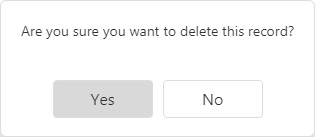
Figure 5 - Note when deleting a project
7. Upload a local project to the server
By clicking on the button |
|
the respective project can be uploaded to the server. The project is then available in the Server Projects tab. |

|
Note: Each local project has its own ownership or ownership rights. This ownership is also stored when uploading a project to the project server. This authorizes only the user to manage shares, remove, or override the server project. If a project (or its unique project ID) is already contained on the server, an appropriate security prompt appears before overwriting. |
© SimPlan AG - Hanau District Court, Commercial Register (Part B) 6845 - info@simplan.de - www.simplan.de