This chapter describes and explains the login window and the login process of the application.
When the app is first used on a host computer, it must be connected to the project server or user administration to verify the logon process for the first time.
As soon as the application is started, the login window appears first. To log in, it is sufficient to use authentication via Azure, as see in Figure 1.
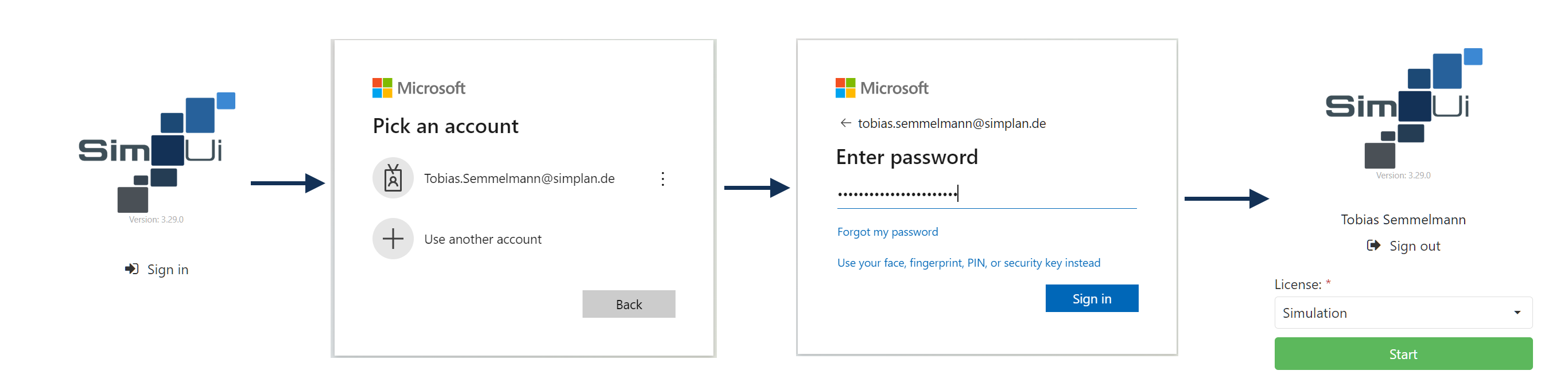
Figure 1 - Login process
If an initial login fails due to an unavailable server, the connection information to the server must be checked and the administrator notified if necessary.
The server address can be adjusted in the options in App settings (global).
The desired license can be selected via the License dropdown (see Figure 2). Depending on the selected license type, different permissions are enabled in the app.
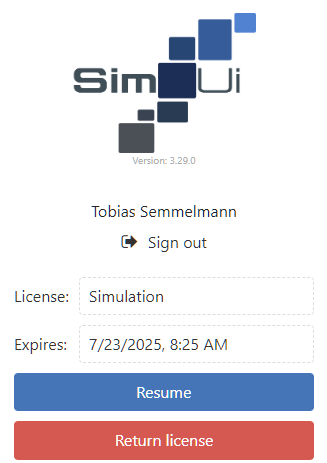
After logging in, the selected license and the expiration date are displayed in the title bar of the application (see Figure 3).
|
Note: When using floating licenses and license servers, a user can only be logged in once at the same time (cross-device). |

Figure 2 - Choose license |
Figure 3 - License type and expiration date |


When closing the application, the user is asked if he wants to return the currently used license (see Figure 6).
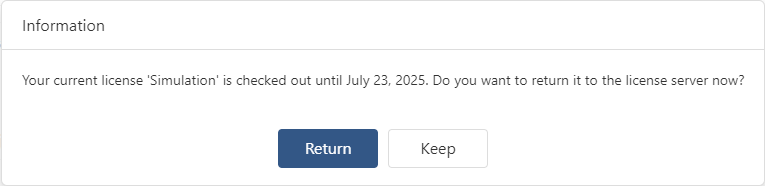
Figure 4 - Return license
Figure 5 - Reuse license |
Figure 6 - Not enough licenses available |

© SimPlan AG - Hanau District Court, Commercial Register (Part B) 6845 - info@simplan.de - www.simplan.de